Introduction
Scraping data is only half the battle. The other half is getting that data into the right format so you can actually use it.
Most scraping tools either dump raw HTML, require complex transformations, or only support one output format. That means more time reformatting and less time actually working with your data.
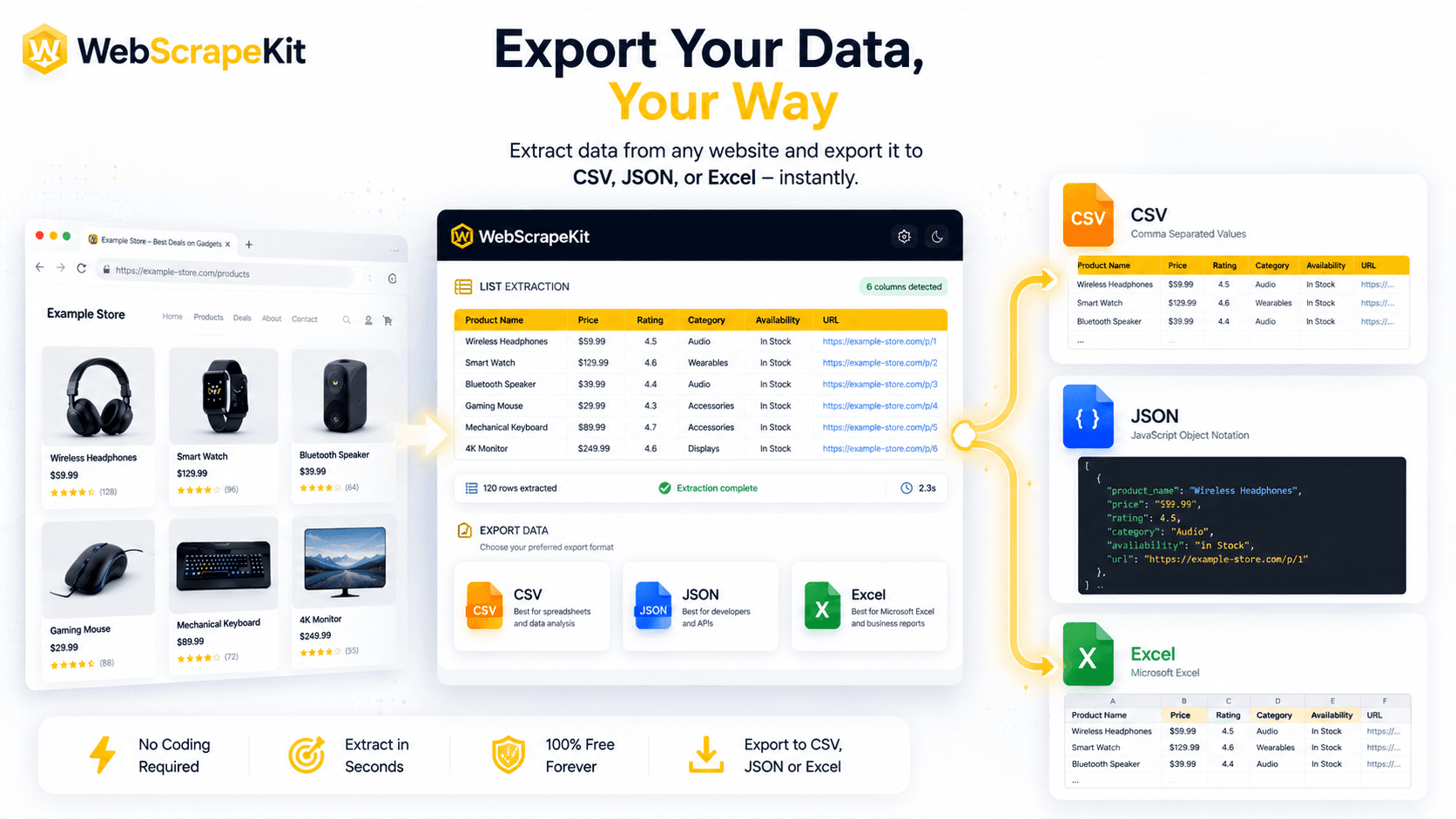
WebScrapeKit is different. It exports your scraped data directly to CSV, JSON, or Excel - instantly, in the format you choose - so you can jump straight from extraction to analysis.
Why Export Format Matters
Different tools and workflows require different data formats:
CSV - The universal format. Opens in Excel, Google Sheets, LibreOffice, and virtually every data tool. Ideal for marketers, analysts, and researchers.
JSON - The developer's format. Structured, nested, and machine-readable. Perfect for feeding directly into APIs, databases, or code projects.
Excel (.xlsx) - The business professional's format. Supports multiple sheets, formatting, and formulas. Ideal for reports, dashboards, and sharing with non-technical stakeholders.
How WebScrapeKit's Export Works
Once you've extracted data using WebScrapeKit, exporting is a single click. No additional steps, no reformatting, no copy-pasting.
- 1Extract your data using any of WebScrapeKit's extraction modes.
- 2Preview the extracted data in the extension panel to confirm accuracy.
- 3Choose your export format - CSV, JSON, or Excel.
- 4Download the file instantly to your device.
The entire process from extraction to export takes less than 60 seconds.
Real-World Export Use Cases
E-commerce researcher: Extracts product names, prices, and URLs from 5 competitor websites. Exports to Excel to build a side-by-side comparison dashboard.
Developer building a REST API: Extracts a list of business names and addresses from a directory. Exports to JSON to seed a test database.
Content marketer: Scrapes titles and meta descriptions from top-ranking pages. Exports to CSV to analyze patterns in Google Sheets.
Lead generation specialist: Extracts emails from a contact directory. Exports to CSV to import directly into their CRM.
Conclusion
Data is only as useful as your ability to work with it. WebScrapeKit's multi-format export ensures your scraped data is immediately ready for whatever comes next - analysis, development, reporting, or outreach.
With CSV, JSON, and Excel export built in and free, WebScrapeKit removes the last friction point between data collection and data usage.
Start exporting smarter with WebScrapeKit.com