Introduction: Why E-commerce Data Extraction Matters
In e-commerce, pricing is both a strategy and a survival mechanism. Get it wrong - price too high or too low relative to competitors - and you lose customers, margin, or both.
The challenge is that competitor pricing isn't static. Products go on sale, new listings appear, promotional pricing changes weekly. Tracking all of this manually is practically impossible at any meaningful scale.
WebScrapeKit gives e-commerce teams, independent sellers, and market analysts a fast, free way to extract product lists and prices from any e-commerce website - enabling the kind of competitive pricing analysis that was previously only available to teams with dedicated data infrastructure.
What You Can Extract from E-commerce Sites
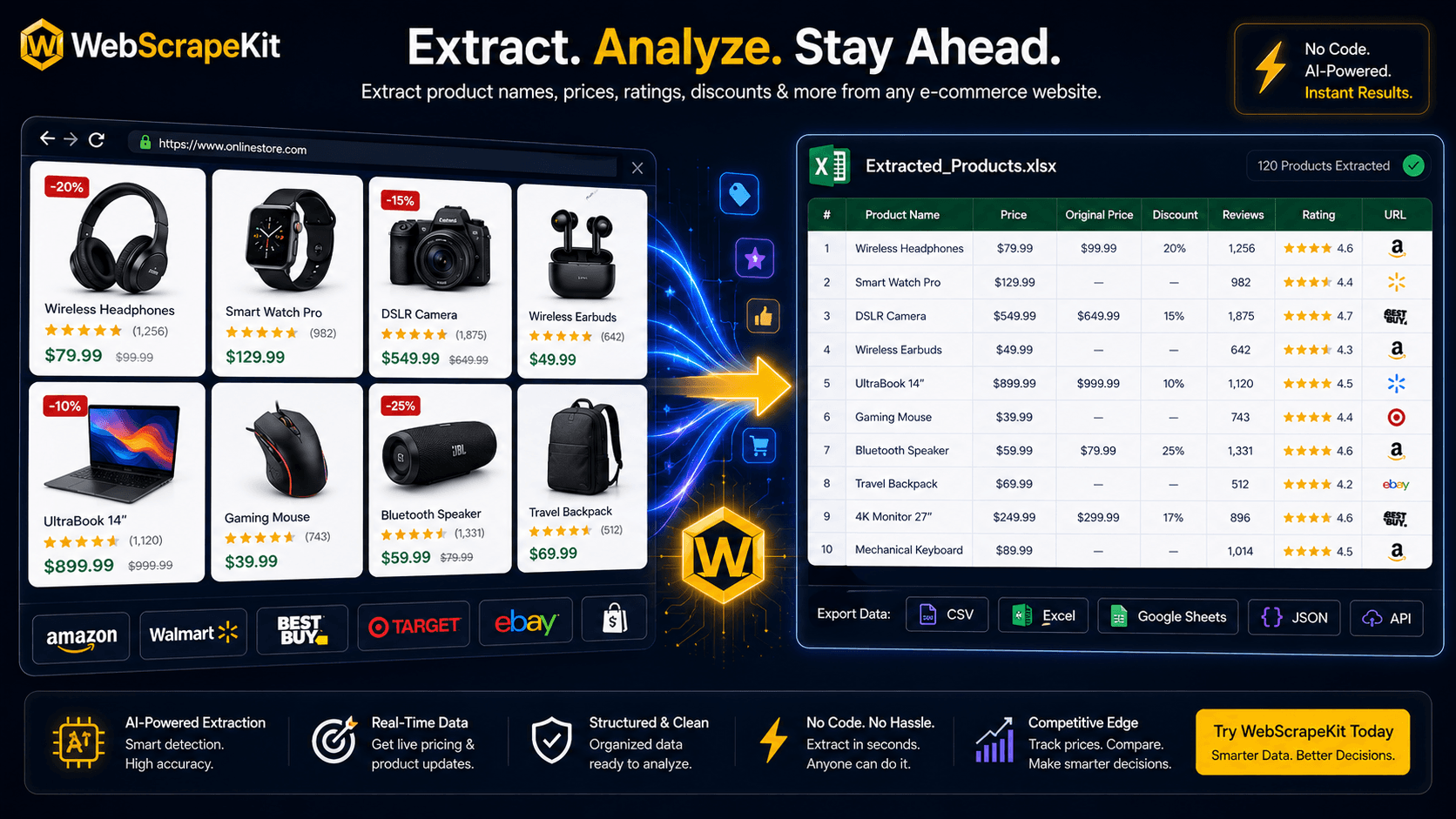
Product names: The full product title as listed on the page.
Prices: Current price, original price, discount percentage.
Product URLs: Direct links to each product page for deeper analysis.
Ratings and review counts: Social proof metrics that indicate product popularity.
Availability status: Whether items are in stock, limited, or out of stock.
Brand names: Useful for tracking which brands dominate certain categories.
Step-by-Step: Extracting a Product List with Prices
Step 1: Choose your target
Identify the e-commerce website and specific category page you want to analyze.
Step 2: Open WebScrapeKit
Click the extension icon and select 'List Extraction'.
Step 3: Select the product name
Hover over the first product name. When it highlights, click it. WebScrapeKit will detect the pattern and highlight all product names across the page.
Step 4: Add the price column
Click on the price of the same first product. WebScrapeKit adds price as a second column.
Step 5: Add the URL column
Click the product name link to capture the URL as well.
Step 6: Review the preview
Check the panel to ensure all products and prices were captured correctly.
Step 7: Export
Choose CSV or Excel for analysis, or JSON if feeding data into a tool or database.
Step 8: Repeat for each competitor
Run the same extraction on each competitor's equivalent category page.
Building a Competitive Pricing Analysis
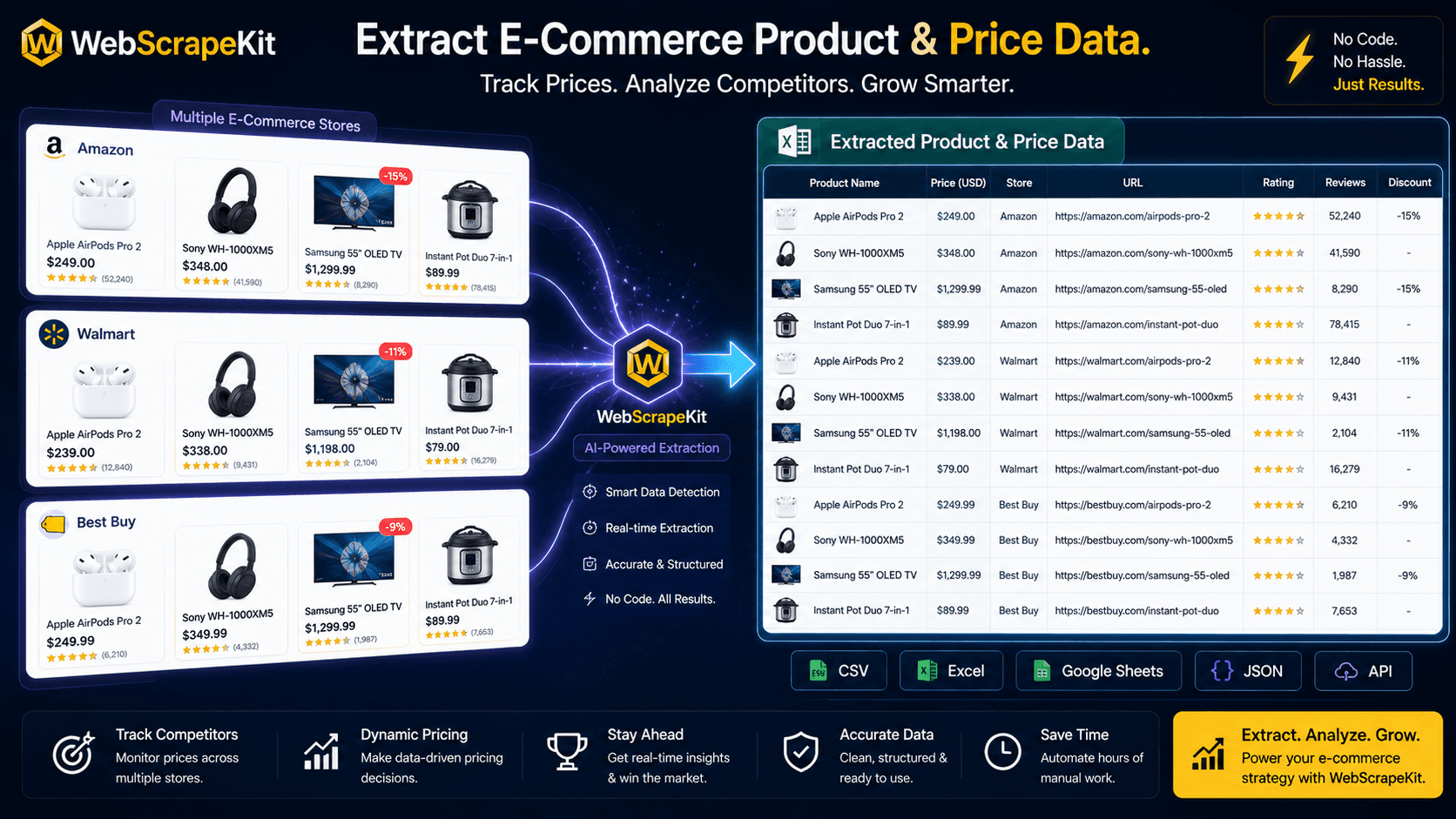
Price comparison tables: Align competitors' products side by side for direct comparison.
Price range analysis: Identify minimum, maximum, and average prices in each category.
Discount pattern tracking: Monitor how often and how deeply each competitor discounts.
Price change tracking: Run extractions weekly to build a time-series view of how competitor pricing evolves.
Conclusion
Competitive pricing intelligence is no longer a luxury for large e-commerce teams. With WebScrapeKit, any seller, analyst, or business owner can extract product lists and prices from any e-commerce website and build sophisticated pricing analysis - for free.
The e-commerce market moves fast. Your pricing intelligence needs to move faster.
Start extracting at WebScrapeKit.com