Introduction
First impressions matter - especially with productivity tools. If getting started requires too many steps, most users give up before seeing the value.
WebScrapeKit was designed with instant activation in mind. From the moment you click the extension icon, you're seconds away from extracting any type of data from any website.
Activating WebScrapeKit: What You See
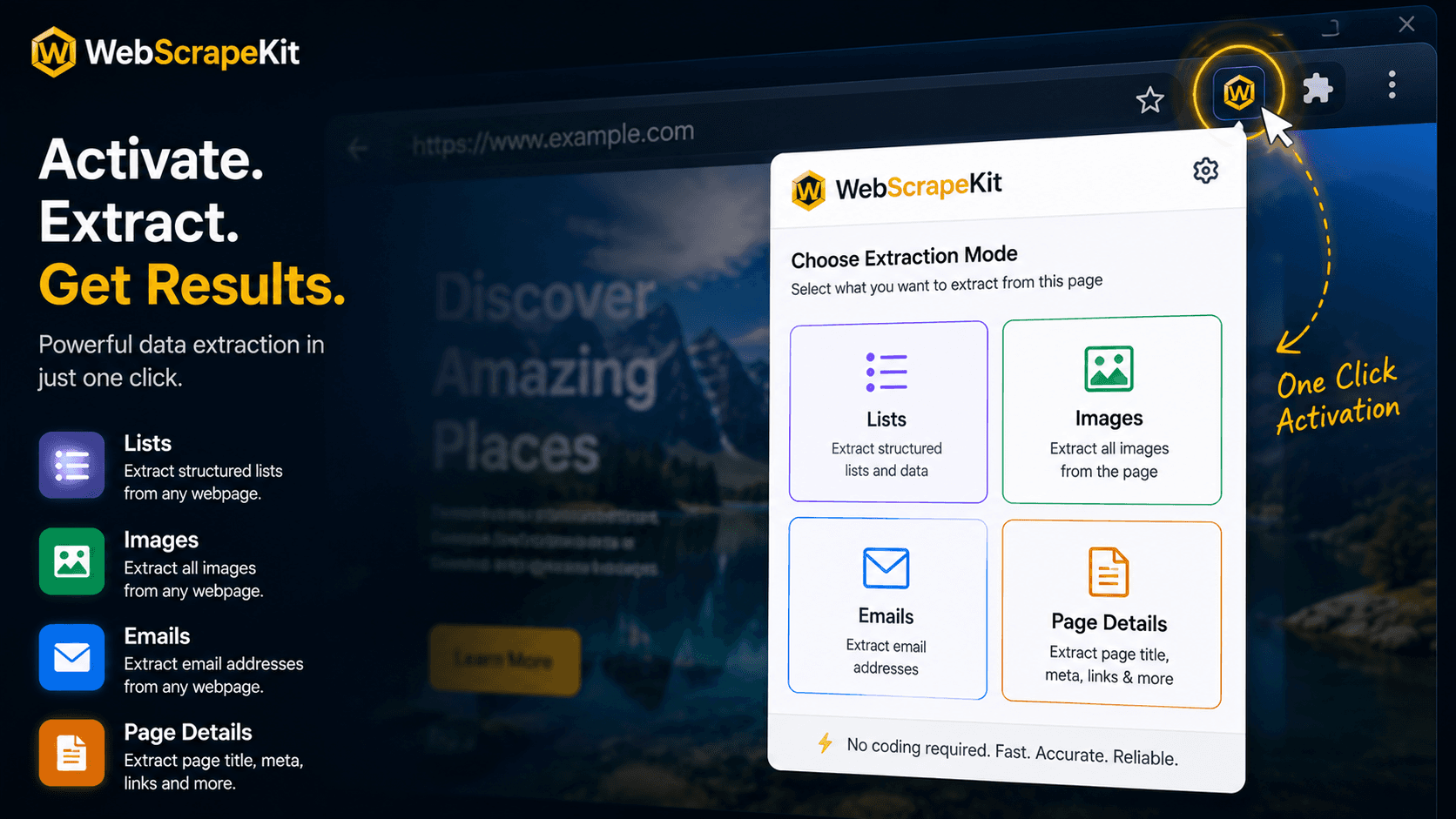
When you click the WebScrapeKit icon in your Chrome toolbar, a compact, clean panel opens immediately. There are no configuration screens, no tutorial prompts, no account connection requirements.
What you see immediately is the extraction mode selection - four clear options:
List Extraction - For extracting repeating patterns: product listings, search results, directory entries.
Extract Images - For downloading all images from the current page.
Extract Emails - For pulling email addresses from contact pages and directories.
Page Details - For extracting comprehensive on-page information including titles, meta tags, headings, and links.
Choosing the Right Data Type
Use List Extraction when you see data arranged in a repeating pattern - products, articles, business listings, search results, job postings.
Use Extract Images when you need all the visual assets from a page - product photos, gallery images, portfolio pieces.
Use Extract Emails when you're on a contact directory, About page, or any page where email addresses are visible in the text.
Use Page Details when you need a comprehensive technical snapshot of the page - for SEO audits, competitive analysis, or developer use cases.
Conclusion
WebScrapeKit's instant activation and clear data type selection make it one of the most accessible data extraction tools available.
Click, select, extract. That's the entire workflow.
Install free at WebScrapeKit.com