Introduction
Seeing is believing. The best way to understand what WebScrapeKit can do is to watch it in action - and there's no more satisfying demonstration than watching a page full of products transform into a clean, structured CSV in seconds.
In this post, we'll walk through exactly what happens when you use WebScrapeKit to extract product names and prices from an e-commerce website - step by step, from extension click to downloaded file.
The Step-by-Step Demo
Step 1: Open WebScrapeKit
Click the WebScrapeKit icon in your Chrome toolbar. The extension panel opens alongside the current page.
Step 2: Select List Extraction
Choose the List Extraction mode. WebScrapeKit switches to selection mode.
Step 3: Click on a product name
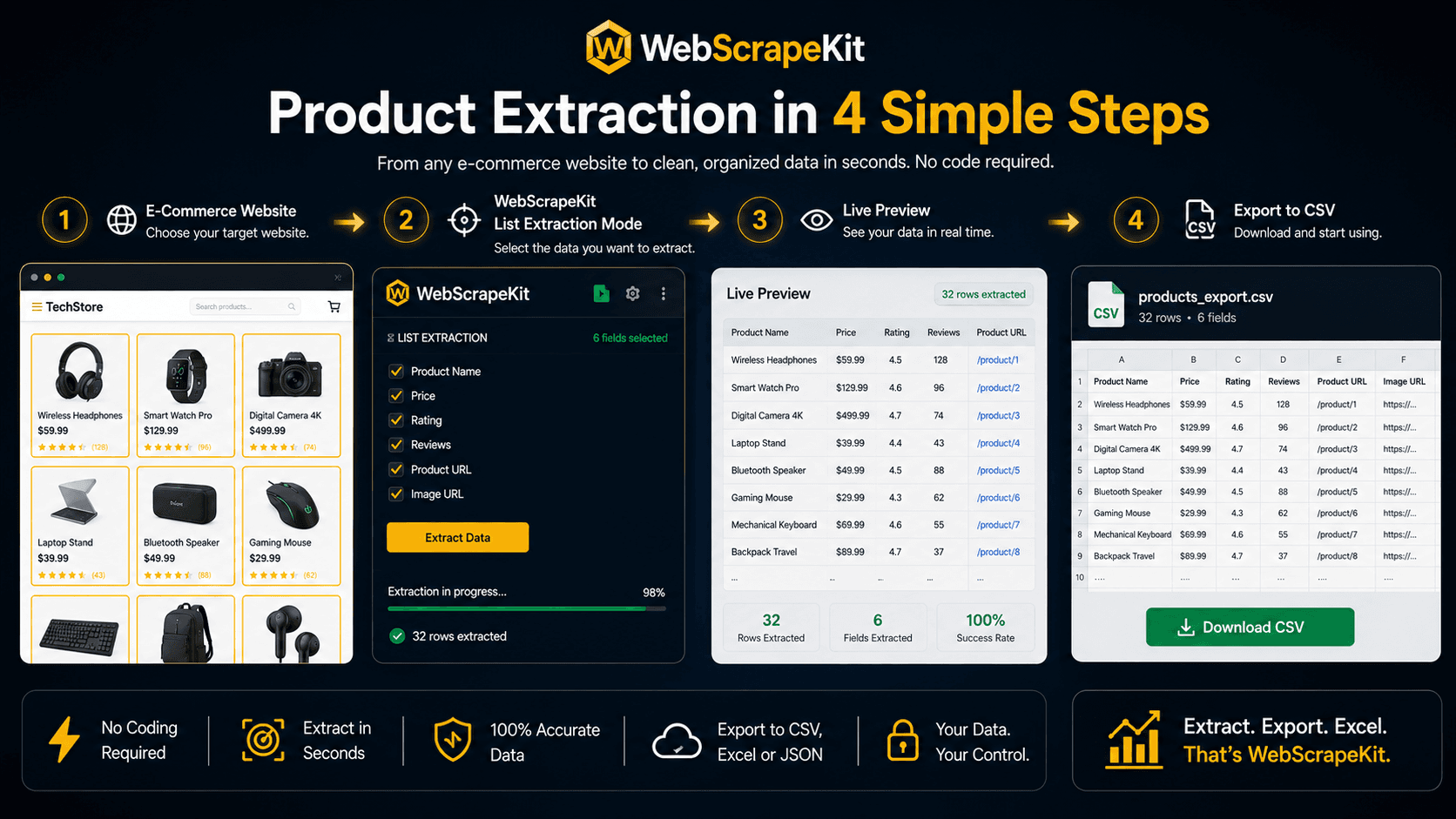
Hover over the first product name and click. WebScrapeKit instantly detects the pattern and highlights ALL matching product name elements across the entire page.
Step 4: Add price as a second column
Click on the price of the same product. WebScrapeKit adds the price as a second data column and highlights all prices on the page.
Step 5: Preview the data
The extension panel shows a live preview of all extracted data - product names in column 1, prices in column 2.
Step 6: Export to CSV
Click 'Export as CSV'. The file downloads instantly.
Step 7: Open the file
Open the CSV in Excel or Google Sheets. Clean columns, clean data, zero reformatting needed.
Conclusion
In under 60 seconds, you have a clean, structured CSV with every product name and price from the page - data that would have taken 30 to 45 minutes to collect manually.
Install the extension and try it yourself - your first extraction will take under 5 minutes.
Install free at WebScrapeKit.com and try the demo yourself