Introduction
Image extraction is one of the most requested features among WebScrapeKit users. Whether you're conducting a competitor visual audit, downloading reference images for a design project, archiving content, or gathering training data for an image recognition model, bulk image extraction from websites is a genuinely common need.
WebScrapeKit handles it with a single click. Here's the complete guide.
Who Needs Bulk Image Extraction?
Designers and creatives: Download competitor visual assets, reference images, or style references for mood boards and design briefs.
E-commerce teams: Extract product images from supplier or competitor websites for catalog comparison.
Content auditors: Download all images from a client's website to audit visual consistency, file naming, and image optimization.
Machine learning engineers: Gather image datasets from public websites for training computer vision models.
Journalists and researchers: Archive visual content from public websites as evidence or reference material.
How to Extract All Images with WebScrapeKit
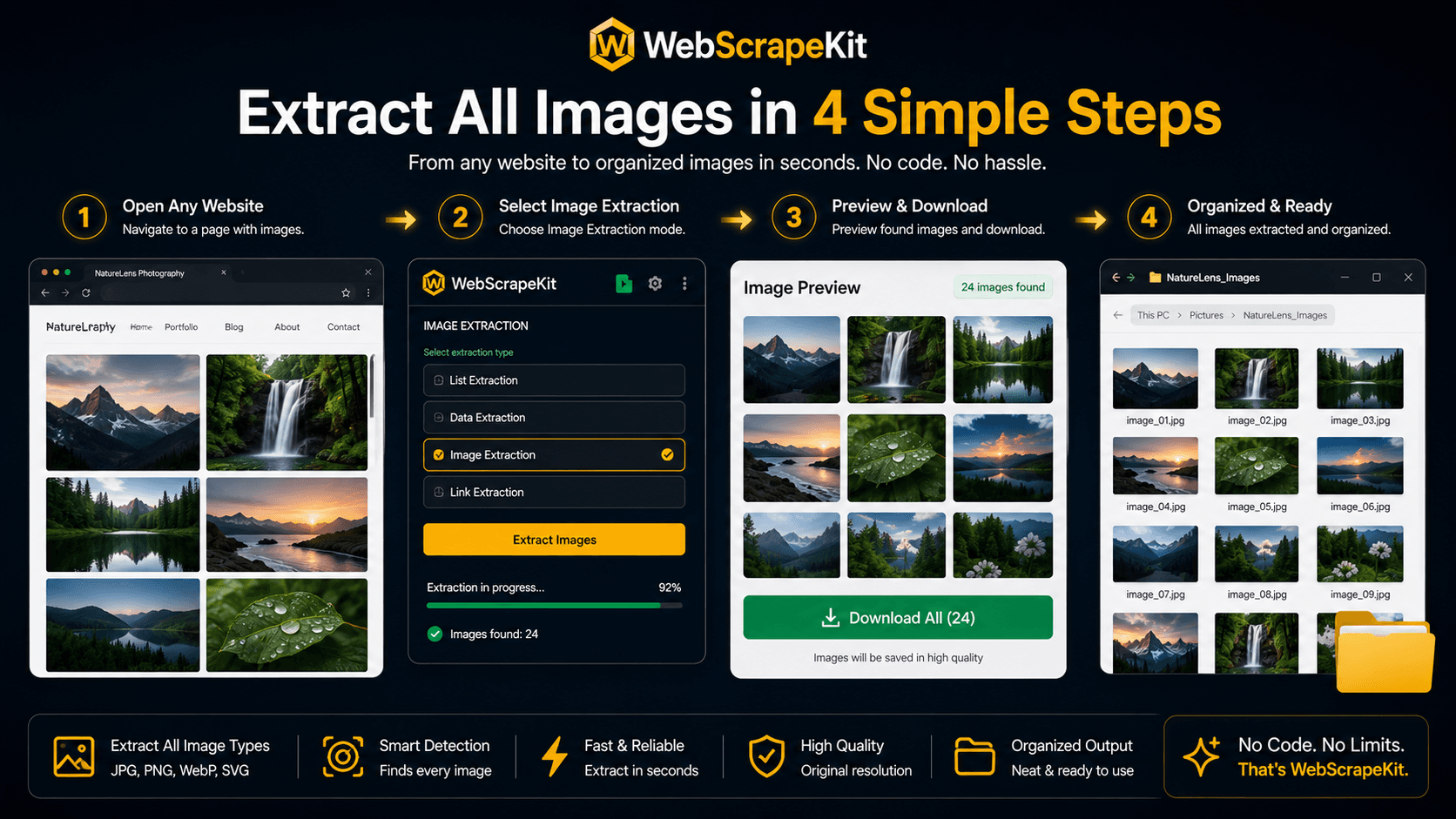
Step 1: Navigate to the target website
Open any website containing the images you want to extract in Chrome.
Step 2: Open WebScrapeKit
Click the WebScrapeKit extension icon in your Chrome toolbar.
Step 3: Select 'Extract Images' mode
Choose the image extraction option from the WebScrapeKit panel.
Step 4: Preview
WebScrapeKit instantly detects and previews all images found on the current page, showing you thumbnails and image dimensions.
Step 5: Filter if needed
Filter by minimum image size to exclude icons, favicons, and tiny UI elements.
Step 6: Download
Click download. All images are saved to your device, organized and ready to use.
Tips for Better Image Extraction
Use size filtering: Most websites contain dozens of small UI images alongside the main content images. Use WebScrapeKit's size filter to capture only images above a certain pixel dimension.
Scroll before extracting: For pages that load images dynamically as you scroll, scroll through the entire page before opening WebScrapeKit to ensure all images are loaded.
Conclusion
Bulk image extraction from websites used to require writing custom scripts or using expensive cloud tools. WebScrapeKit makes it a one-click operation available to anyone, for free.
Install free at WebScrapeKit.com